



| HEADLINE |

|

How to activate and use Google Gemini's live visual search
Published : Saturday, 28 November, 2026 at 10:10 AM
Observer Online Report


Collected Photo
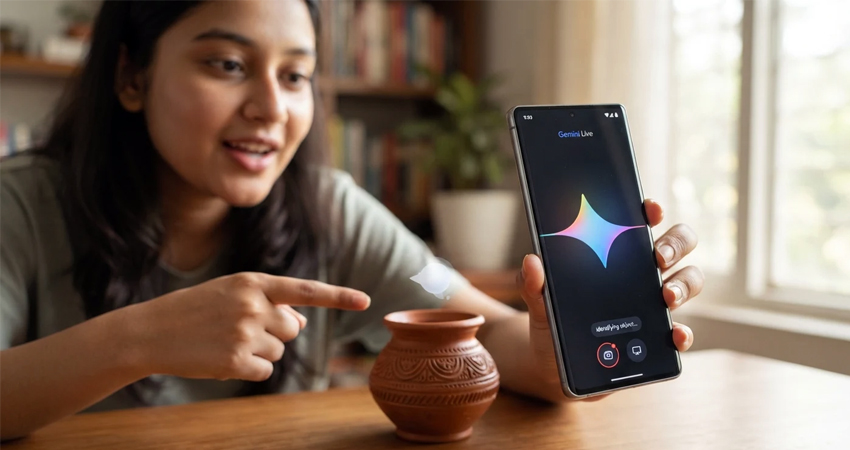
Google has enhanced its artificial intelligence assistant, Gemini, with a powerful feature called "Gemini Live" that allows users to interact in real-time by sharing their smartphone's camera feed or screen content.
This free tool, available on both Android and iPhone, transforms the AI into a visual assistant capable of answering questions about the physical world or digital content instantly.
How to Activate Gemini Live
To access this feature, ensure you have the latest version of the Google Gemini app installed on your Android or iPhone. Open the app and tap on the "Live" icon located at the bottom of the screen. Upon first use, the app will request permission to access your microphone. Once granted, you can begin asking questions verbally. Gemini will respond with voice, and you are free to ask new questions or change topics mid-conversation.
How to Ask Questions Using the Camera
To learn about an object, appliance, or location around you, activate Gemini Live and tap the camera icon. Point your phone's camera at the item or scene you want to understand, and ask Gemini your question. For instance, you can ask for the name of a plant, instructions for a gadget, or a step in a cooking recipe by showing it directly to the camera. You can switch between the front and rear cameras as needed. To stop sharing the video, tap the camera icon again.
How to Get Information by Sharing Your Screen
To get details about a website, image, or application open on your phone, start Gemini Live and tap the "Screen Share" icon. On Android, select "Start Now," and on iPhone, select "Start Broadcast" to grant sharing permission. Now, navigate to the other app, website, or image you wish to query, and ask Gemini your question. Gemini will analyze the content on the shared screen and provide the requested answer.
Users should be cautious when using the screen share feature, as it may display personal information and notifications visible on the screen. It is recommended to close all unnecessary apps and only keep the relevant one open before sharing. To end the session, use the "Stop Sharing" option in the Android notification panel or stop the broadcast on iPhone.
-EM

Loading...
Loading...
Also read









Editor : Iqbal Sobhan Chowdhury
Published by the Editor on behalf of the Observer Ltd. from Globe Printers, 24/A, New Eskaton Road, Ramna, Dhaka.
Editorial, News and Commercial Offices : Aziz Bhaban (2nd floor), 93, Motijheel C/A, Dhaka-1000.
Phone: PABX- 41053001-06; Advertisement: 41053012; 01793317829, 01550707291, 01550707296
E-mail: [email protected], [email protected]. [email protected], [email protected], [email protected], [email protected], Online-email: [email protected]


